Need to open HRMS Globex but can’t find the right login page? Maybe your password has stopped working, the CAPTCHA keeps failing, or you’re trying to retrieve an employee document. The challenge is knowing which portal to trust before entering sensitive information.
HRMS Globex has a publicly accessible employee login page that requests a username, password, and CAPTCHA. A separate recovery form asks for an employee code. However, websites that mention HRMS Globex are not necessarily affiliated with the official employee login portal.
This guide explains how to verify the login address, access your account, recover credentials, troubleshoot common problems, and understand which employee features have been documented.
Quick answer: The observed HRMS Globex login page is located at https://hrms.theglobex.com/Web/Default.aspx. Verify with your employer that the website address is correct for your account before entering your login credentials.
- What Is HRMS Globex, and Who Is Eligible to Access It?
- How to Access the HRMS Globex Login Portal
- HRMS Globex Password Recovery: What to Do
- Common HRMS Globex Login Problems and Practical Fixes
- What Employee Features Are Actually Documented?
- HRMS Globex Portal Safety: How to Avoid Fake Login Pages
- HRMS Globex FAQs
- Conclusion
What Is HRMS Globex, and Who Is Eligible to Access It?
HRMS stands for Human Resource Management System. Businesses use this category of software to organize employment records, manage internal processes, and give authorized workers access to information relevant to their jobs.
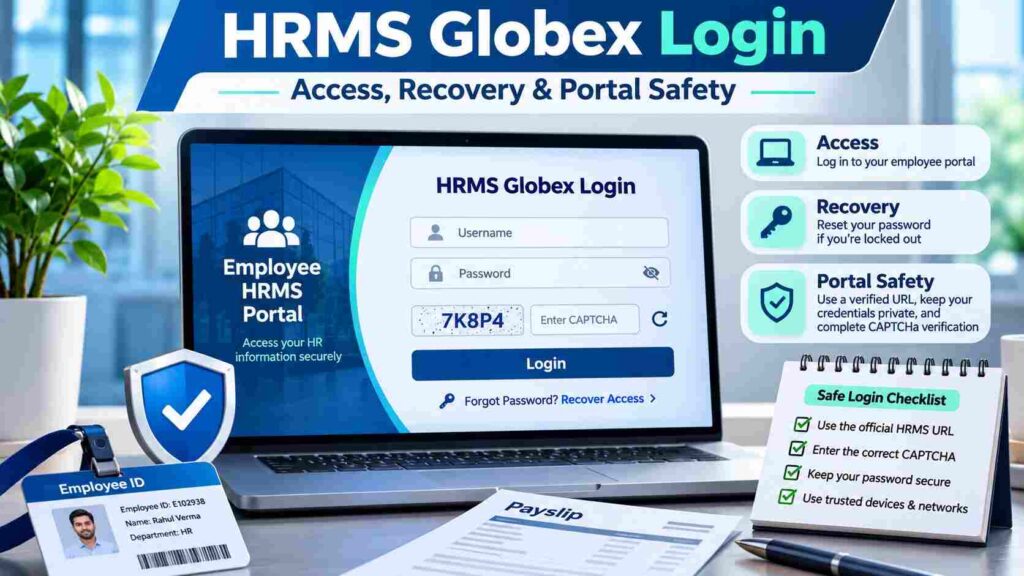
HRMS Globex provides a web-based employee login portal that requires a username, password, and CAPTCHA, with an option to recover forgotten passwords.
For a closer look at employee login procedures, password recovery, and portal verification, this HRMS Globex guide explains the essential access steps and security precautions employees should understand before signing in.
Unlike a general software service offering open registration, this portal appears designed around accounts issued through an organization.
Employees should not expect to be able to register new accounts independently. If you haven’t received credentials, your employer’s HR or IT department should be the first point of contact.
Two Similar Website Names You Should Understand
Search results can include two different websites:
| Website | Publicly observable purpose |
|---|---|
hrms.theglobex.com | Employee login and account-recovery interface |
hrmsglobex.com | Public information describing HR management software |
The similarity in their names does not establish that both websites share an operator.
This distinction matters because an employee looking for a salary statement could accidentally enter credentials on a website that is not authorized by their organization.
When in doubt, use the address supplied in your company’s verified onboarding instructions.
How to Access the HRMS Globex Login Portal
The login process itself is straightforward. The essential first step is confirming that you have the correct account and website.
Step-by-Step HRMS Globex Login Instructions
- Confirm the portal address. Ask your employer to verify the login URL. The publicly observed page is
https://hrms.theglobex.com/Web/Default.aspx. - Open the approved website. Enter the verified address into an updated browser instead of following an unfamiliar message or advertisement.
- Provide your username. Use the identifier assigned by your employer. It may not be identical to your work email.
- Enter your password. Check capitalization, keyboard layout, and accidental spaces.
- Complete the CAPTCHA. Type the characters currently displayed. Refresh the challenge if it is unreadable.
- Submit your details. If authentication succeeds, use only the functions made available to your account.
The publicly accessible page does not provide a complete overview of the features available within the employee dashboard. Your available menus may depend on your role, permissions, or employer-specific settings.
First-Time Employees: What Happens Before Login?
If you recently joined an organization, don’t assume that your HRMS account becomes active automatically.
Ask the HR department whether an account has been created, which username you should use, and whether any initial activation steps are required.
You should also confirm whether remote access is permitted.
Never use a third-party registration service promising to generate an HRMS Globex employee account. Only an authorized administrator can confirm how credentials are issued.
HRMS Globex Password Recovery: What to Do
Forgetting a password is different from losing access to the entire portal. Start by identifying which problem you have.
The publicly visible HRMS Globex password-recovery page requests an Employee Code and CAPTCHA.
How to Start Password Recovery
- Visit the login page confirmed by your employer.
- Select the Forgot password? option.
- Enter the employee code associated with your account.
- Complete the displayed CAPTCHA.
- Submit the form and follow the instructions provided.
- Contact your organization’s support team if recovery cannot be completed.
The public recovery screen does not establish which additional verification methods, if any, appear after submission.
For that reason, it would be inaccurate to promise that every user can reset a password through email, SMS, or a one-time code.
What If You Don’t Know Your Employee Code?
Your employee code and username may not be the same.
Check previously issued employment records or ask your HR administrator which identifier applies to your account.
Avoid sharing identification documents, passwords, or recovery codes through unverified support channels.
If your workplace uses multi-factor authentication and you’ve lost access to your authentication device, request the organization’s approved recovery process rather than attempting to bypass the additional security step.
Common HRMS Globex Login Problems and Practical Fixes
An unsuccessful login does not necessarily mean the service is down. The problem may involve your credentials, browser, account permissions, or employer network.
Use the following guide to identify an appropriate next step.
| Problem | Possible cause | Recommended action |
|---|---|---|
| Incorrect username or password | Typing error or changed credentials | Verify the account identifier and use approved recovery |
| CAPTCHA repeatedly fails | Expired or incorrectly entered challenge | Refresh the CAPTCHA and try again |
| Account appears locked | Repeated sign-in failures or administrative restrictions | Contact your HRMS administrator |
| Page works at the office but not at home | Employer network or device policy | Ask IT about approved remote access |
| Page does not load | Browser, connection, DNS, or server problem | Check the approved URL and report the error |
| Expected dashboard option is missing | Permissions or workflow eligibility | Ask HR to verify your access |
| Recovery form doesn’t recognize employee code | Incorrect identifier or account issue | Confirm the employee code with HR |
These are possible troubleshooting explanations, not confirmed technical conditions of every HRMS Globex account.
Why the Portal May Work at Work but Not at Home
Some companies protect internal applications by limiting access to approved devices or networks.
For example, an employee might successfully sign in using an office computer but encounter an access error on a home laptop.
That could indicate a network restriction, but it could also be a separate account or browser problem.
Ask your IT team whether the system requires a managed computer, corporate VPN, or another approved connection method.
Do not install an unknown VPN extension or use a public proxy merely to make the login page open.
When Should You Stop Trying to Log In?
Repeated guessing can make an account problem worse if protective lockout controls are in place.
After a few unsuccessful attempts, verify your credentials and use the approved recovery option.
If the problem continues, record the error message, approximate time, and device type before contacting support.
Never include your password in a screenshot or support request.
What Employee Features Are Actually Documented?
Many websites describe HRMS Globex as a complete platform for payroll, attendance, leave applications, recruitment, and employee self-service.
Some of those features are common across HR software generally. But public descriptions alone do not establish that every function exists in the current Globex portal.
The strongest evidence comes from historical employee guides hosted on the login domain.
Employee Performance Reviews
A 2018 Performance Management System guide describes a structured appraisal process.
In that documented workflow, employees completed a self-review, reporting leads evaluated their work, and department heads provided final reviews.
Performance criteria included efficiency, quality, attendance, communication, technical skills, and meeting deadlines.
The guide also describes draft-saving behavior and limits on changes after final submission.
These are documented historical capabilities, not confirmation that the current portal uses the same screens or eligibility rules.
Appraisal Letters and Review Acknowledgements
A separate 2021 employee review guide explains how eligible employees could view appraisal letters and acknowledge their performance reviews.
It also describes password confirmation during review acceptance.
The document identifies Global Healthcare Billing Partners Pvt Ltd and refers to a specific historical review period.
If an appraisal document is missing from your present-day account, ask HR whether the relevant review has been released and whether you are included in the review cycle.
Payslips, Leave, and Attendance
Current payroll, leave, and attendance menus cannot be reliably confirmed from the public login screen.
A general HR portal might provide these functions, but employees should not assume they are available in their HRMS Globex account.
If you need a payslip, sign in through the employer-approved website and inspect the options provided to you. If no payroll or document section appears, contact your payroll department.
The same approach applies to attendance corrections and leave approvals.
HRMS Globex Portal Safety: How to Avoid Fake Login Pages
An employee login portal may provide access to sensitive and confidential employment records. That makes verifying the website an essential part of account security.
A fraudulent page may imitate a legitimate corporate login while collecting usernames and passwords.
How to Verify a Login Page
Before signing in, check the following:
- Website address: Compare the complete domain with your employer’s approved instructions.
- Source of the link: Be cautious with unexpected emails, messages, and third-party websites.
- Account requirements: Only use credentials issued or approved through your organization.
- Browser behavior: Pay attention to unusual redirects or requests for unnecessary information.
- Support contact: Confirm suspicious requests using contact details you already trust.
HTTPS encrypts the connection between your browser and the website, but a padlock alone does not prove that the website belongs to your employer.
The US Federal Trade Commission recommends independently contacting an organization through known channels when a message requests sensitive information.
The National Institute of Standards and Technology also provides guidance for recognizing deceptive messages and strengthening account protection.
What If You Entered Your Password on a Suspicious Website?
Act promptly instead of waiting for suspicious activity.
Contact your organization’s IT security department, change the affected password through the verified account-recovery process, and follow any incident-response instructions.
If you suspect that login credentials or other sensitive information have been exposed, understanding the potential risks is important. Our guide to credential exposure and security risks explains how to evaluate possible data leaks, recognize account security threats, and take appropriate protective measures.
If your employer uses multi-factor authentication, report unexpected verification prompts.
Changing a password may not revoke every permission previously granted to a connected application. Your IT team should investigate any related account access.
Are Third-Party HRMS Globex Apps Safe?
An application with a familiar name or logo is not necessarily authorized.
A dedicated official HRMS Globex Android or iPhone app could not be reliably verified through the public sources reviewed.
Avoid APK downloads and unofficial app stores. Ask HR whether your workplace provides an approved mobile application or permits browser access on a phone.
HRMS Globex FAQs
What is the HRMS Globex login URL?
The publicly observed login page is https://hrms.theglobex.com/Web/Default.aspx. Confirm with your employer that this is the correct address before entering your username and password.
Can I register for HRMS Globex online?
The public login page does not show open employee registration. Ask your HR department how new accounts are created and activated.
How do I recover a forgotten HRMS Globex password?
Use the Forgot password? option on your employer-approved portal. The publicly visible recovery form requests an employee code and CAPTCHA. Follow the subsequent instructions or contact HR if recovery fails.
Why can’t I see my performance review?
Review availability may depend on employee eligibility, assigned permissions, or release schedules. Historical guides document these distinctions, but current requirements should be confirmed with HR or your reporting manager.
Can I download my payslip from HRMS Globex?
Current payslip-download functionality has not been independently verified. Check your authorized dashboard or ask the payroll department where salary records are provided.
Does HRMS Globex require a VPN?
A universal VPN requirement has not been confirmed. Some organizations restrict access to approved networks or devices. Contact your IT department for the rules that apply to your account.
Conclusion
HRMS Globex has a publicly accessible employee login and recovery interface, while historical documentation confirms that the system has supported structured performance reviews and appraisal-related workflows.
The important distinction is between what can be verified publicly and what depends on your employer’s current configuration.
For reliable HRMS Globex access, confirm the portal address, use authorized credentials, follow the documented recovery process, and contact HR when a feature or account permission is unclear.
Above all, protect your employee information by relying on verified workplace instructions rather than unfamiliar login links or third-party recovery services.